Radar
The Radar section (Ctrl 1) controls the map view itself: how players, loot markers and map objects are drawn, which monitor and resolution the game uses, and the frame rate.
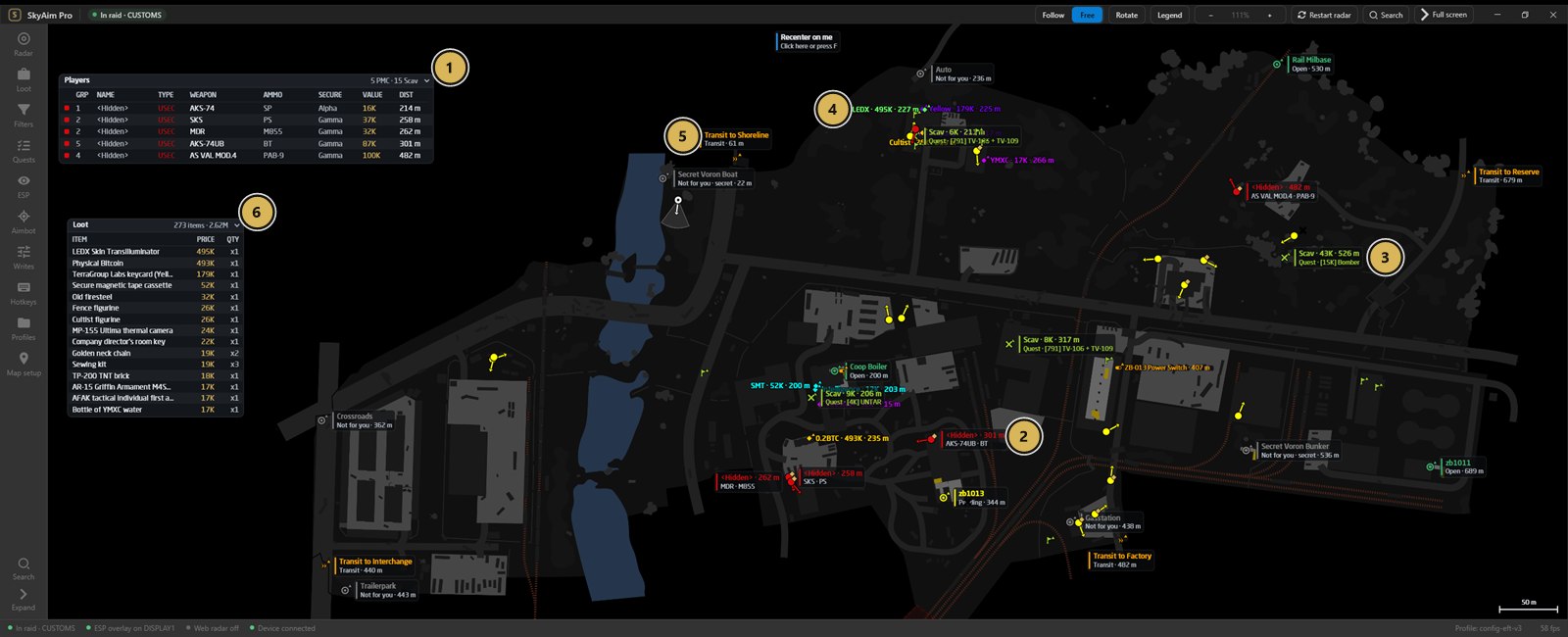
- Every PMC in the raid with weapon, ammo, secure container, gear value and distance
- Enemy PMC on the map with weapon and ammo
- Bodies tagged with the quest items they carry
- Valuable loot with its price, here LEDX at 495K
- Transits and exfils with their distance
- All loot in the raid, sorted by price (273 items, 2.62M)
The command bar#
The row above the map is always visible, even in full screen.
| Control | What it does | Key |
|---|---|---|
| Follow / Free | Follow keeps the map centred on you. Free lets you drag and zoom the map yourself. | F |
| Rotate | Rotates the map so your heading points up. Works in Follow mode. | R |
| Legend | Shows what each marker and colour means, plus the mouse controls. | L |
| − / + | Radar zoom. The mouse wheel over the radar also zooms; 0 resets. | + − 0 |
| Restart radar | Re-reads the current raid. Use it when the map does not appear or markers stop moving. | |
| Search | Searches every setting by name and jumps to it. | Ctrl F |
| Full screen | Radar over the whole screen. The command bar stays so you can leave again. | F11 Esc |
Radar display#
- UI scale / Text size
- Size of markers and labels on the map. Raise it on a 4K or far-away monitor.
- Rotate with your heading
- Same as the Rotate button, saved with the profile.
- Hide inactive exfils
- Hides extracts that are not available to you this raid (also a hotkey action).
- Show kill zones
- Draws quest kill zones from the Quest helper on the map.
- Show locked doors / unlocked doors
- Door markers. Locked doors show the key they need on the label.
- Aim line length
- Length of the line that shows where each player is looking.
- Height indicator
- Marks players above or below you with an arrow so you know which floor they are on.
- Trail
- Minimum trail distance and trail duration for grenade flight trails.
Players on radar#
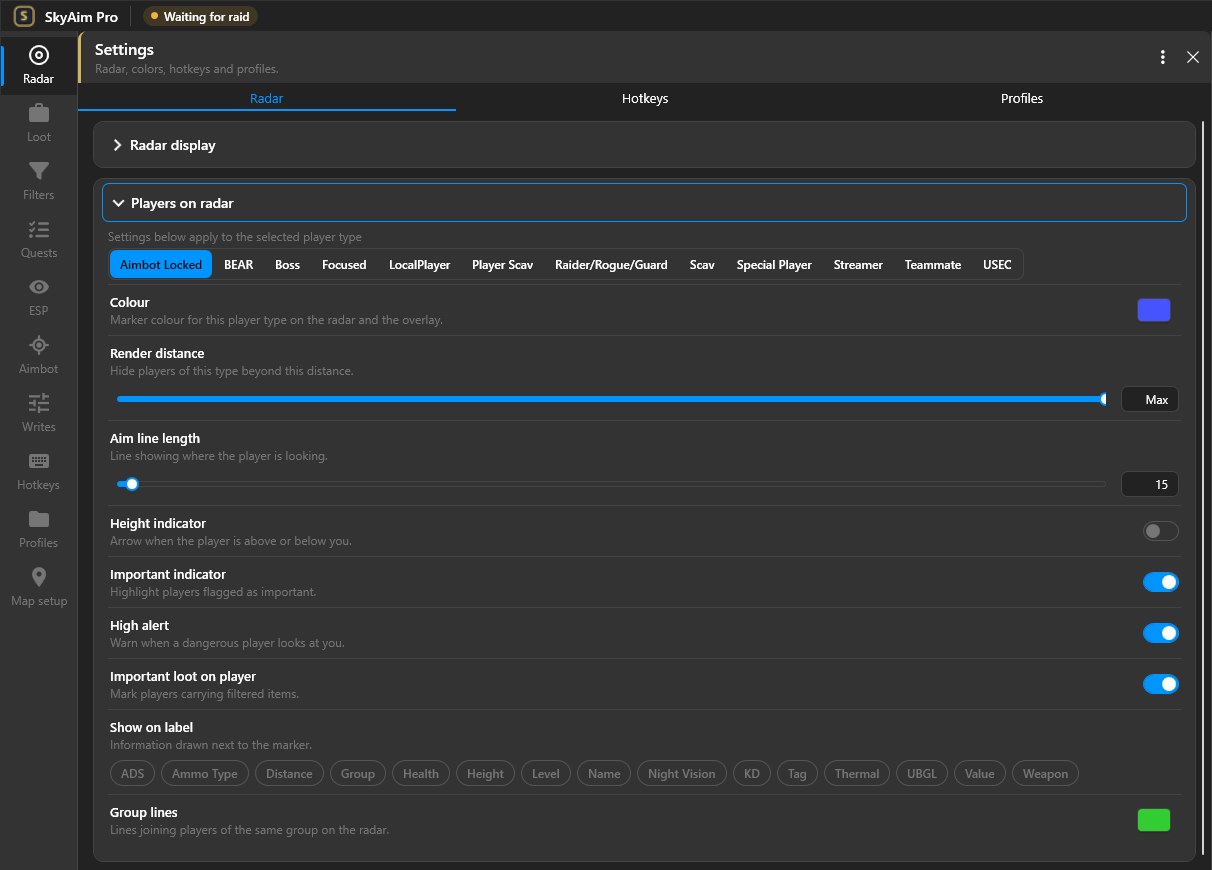
Settings here apply to the selected player type: PMC players (USEC / BEAR), Player scavs, AI scavs, Bosses, Raiders, Teammates and Focused players. Pick the type at the top of the group, then set:
- Show the type on the radar at all.
- Show on label: name, level, K/D, weapon, ammo type, distance, height and health, in any combination.
- Minimum K/D to mark as dangerous: players above this ratio get the High alert style so you spot them first.
- Important loot on player: highlights players carrying an item that matches a loot filter.
- Colour: the swatch under the type list sets this type's colour on the radar; Group lines has its own swatch.
Right-click a player on the map to mark or unmark a teammate. Ctrl + right-click focuses a player so they stay highlighted. Double-click a streamer to open their stream.
Map objects#
Exfils (open, pending, closed, inactive), transits between maps, switches, doors, grenades with blast radius and flight trail, tripwires, airdrops, the BTR and mines. Each can be switched on or off, and the Colours row gives every object type its own swatch.
Theme#
The last group on the Radar page colours the window itself: Accent (buttons and the active section), Panels, Cards, Borders, Radar background and Overlay background (the key colour your fuser removes; keep it a colour no marker uses).
Display#
- Game monitor
- The monitor that carries the game (or the fuser output). The ESP overlay opens on this monitor.
- Game resolution
- Must match the game's real resolution, otherwise overlay markers drift away from players. The line underneath shows the desktop size of the selected monitor for comparison.
- Frame rate limit
- Caps the radar's frames per second to save CPU on the radar PC. The status bar shows the current rate.
- Renderer cross-check / Display check
- Diagnostics that confirm the overlay is rendering where it should. Use them when the overlay is on the wrong screen.
If you unplug the selected monitor, SkyAim Pro falls back to the primary display without overwriting your saved choice. Plug it back in and restart the app to return to it.
Player data source#
Profile lookups fetch a player's level, K/D and streamer status so the label and the dangerous marking can use them. Paste your API key here if the publisher gave you one; without a key, lookups stay off and labels show only what the game itself exposes.
Web radar#
Shares a live copy of the map with teammates in their browser. It has its own page: Web radar for teammates.
Check the FAQ and the launcher message list first. If that does not solve it, send the publisher your newest file from output\Logs (or launcher-update.log for launcher problems).