Download & install
SkyAim Pro is delivered through its own launcher. The launcher signs you in with your license key, downloads the current build and starts it. Follow the steps in order.
1. Check the requirements#
| Component | Requirement |
|---|---|
| Radar PC | Windows 10 or 11, 64-bit. Nothing else to install: the launcher includes its own .NET. Any modern CPU; the radar is light. |
| DMA card | A working DMA setup between the game PC and the radar PC. The card must already be visible on the radar PC. |
| Fuser (optional) | Needed only for the ESP overlay on the game screen. Without one you still get the full radar, loot, quests and web radar. |
| MAKCU or KMBox NET (optional) | Needed only for the device aimbot. See MAKCU setup, KMBOX Net or KMBOX Bpro / MAKCU serial. |
| From the publisher | The launcher ZIP, the HTTPS server address and your license key. All three arrive privately. |
The launcher brings its own .NET 10. The first time you launch a game it downloads the .NET runtime the games use (about 72 MB, once) into %LOCALAPPDATA%\SkyAimLauncher\runtime, and again only when the publisher moves to a newer .NET.
2. Extract the launcher#
- Pick a folder you own
For example
C:\SkyAimPro. Not Program Files, not a synced cloud folder, and not on top of an older copy. - Extract everything
Keep
SkyAimLauncher.exeand all its files together (about 246 files; they include .NET). The launcher updates its own files in this folder later. - Verify what you received
Compare the ZIP's SHA-256 with the one the publisher sent you. If Windows SmartScreen or your antivirus warns about the file, do not click through it; tell the publisher and wait for an answer.
3. Open the launcher#
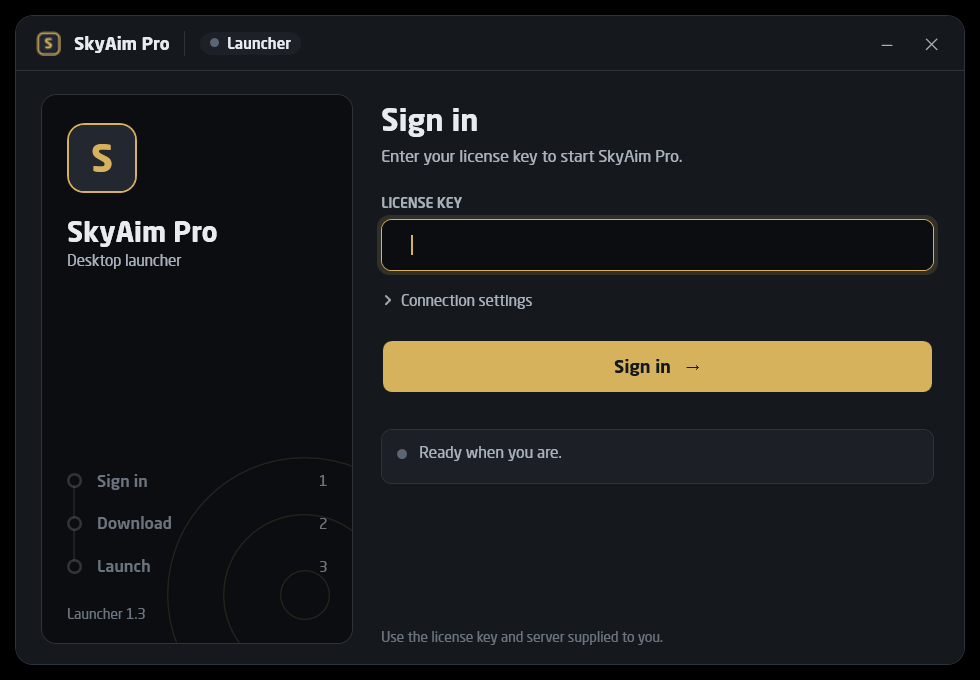
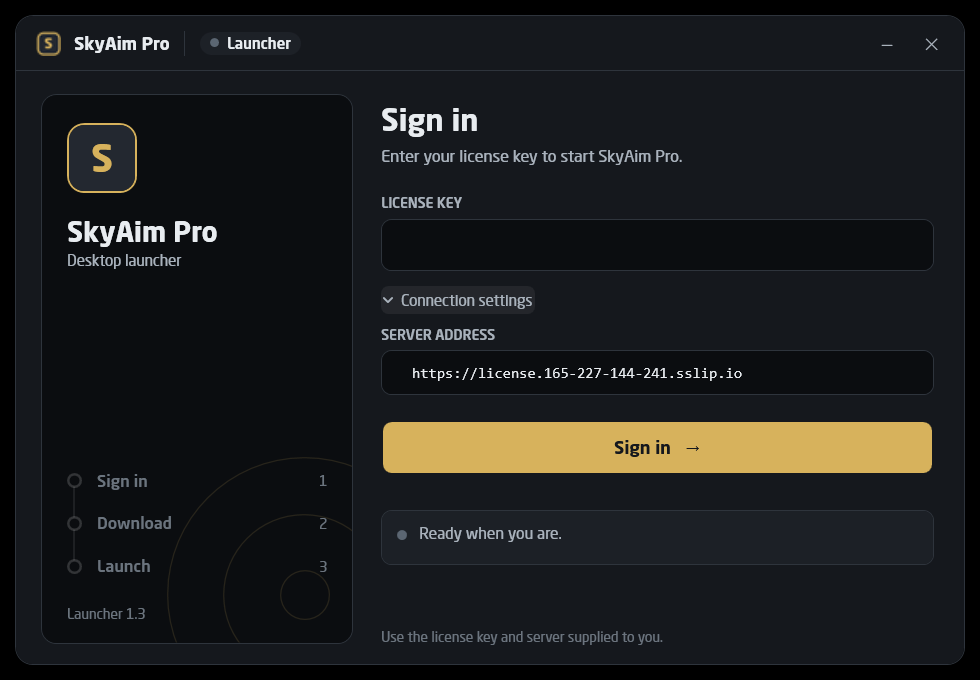
Start SkyAimLauncher.exe. The server address is already filled in under Connection settings, so all you need is your license key. Leave the address as it is unless the publisher tells you otherwise. The launcher only accepts HTTPS and refuses certificates it cannot verify.
4. Sign in and choose a game#
- Enter your license key
Paste it into License key and click Sign in. The first sign-in binds the key to this PC's hardware. If a newer launcher exists, it installs itself and reopens; sign in again.
- Choose a game
The Choose a game page lists every game. Games in your license can be launched; the others are marked Not in your license, and a game the server does not offer yet is marked Not available yet. The game you played last is marked Last used and already selected.
- Launch
Click Launch or press Enter. The left column shows Sign in, Download and Launch. The very first time, the launcher also downloads the .NET runtime (about 72 MB) and, for SkyAim Pro, the line-of-sight map files; both are kept for next time. Every download is checked against the publisher's signature before anything runs.
- Leave the launcher open
The game runs from a temporary session folder. When you close the game, the launcher removes that folder. Close the launcher only after the game has exited.
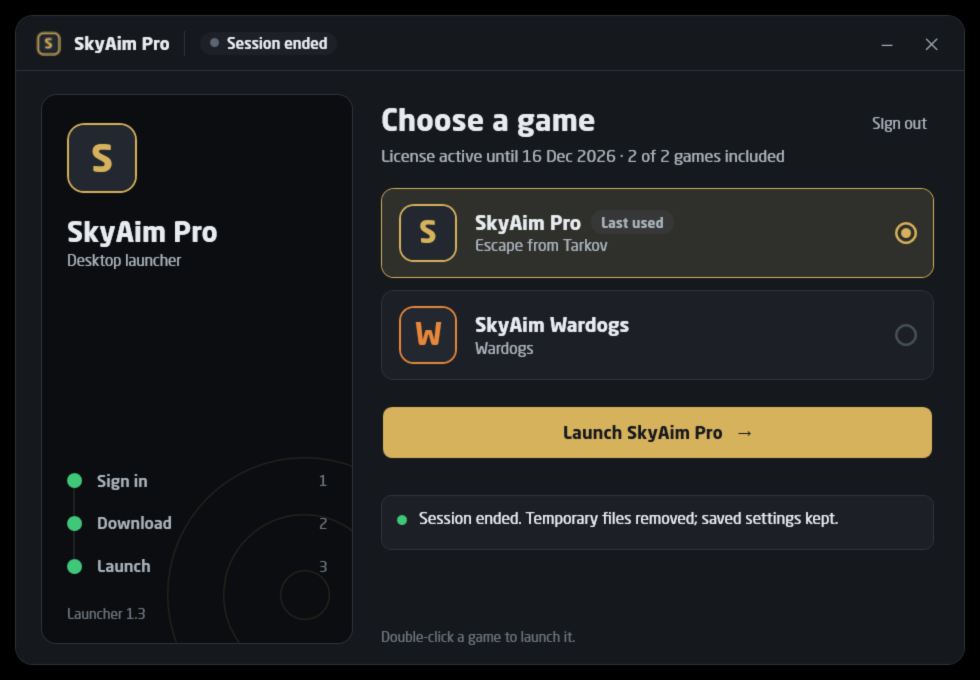
Profiles, loot filters and the quest tracker live in %APPDATA%\SkyAimPro, outside the session folder, so they survive every session and every update.
5. Updates#
You never download anything by hand again.
- App updates are automatic: each launch downloads the current build. To pick up a new release, close SkyAim Pro and launch it again through the launcher.
- Launcher updates happen after sign-in. If a newer launcher exists, it is verified, installed and reopened by itself; enter your key again to continue.
launcher-update.login the launcher folder records each update. - Map files for line of sight are downloaded once into %LOCALAPPDATA%\SkyAimLauncher\maps and only again when the publisher changes them.
Next: First launch checklist.
Check the FAQ and the launcher message list first. If that does not solve it, send the publisher your newest file from output\Logs (or launcher-update.log for launcher problems).