Device aimbot
The Aimbot section (Ctrl 6) aims through a connected mouse device (MAKCU or KMBox NET). Nothing is written to the game: the device moves the mouse like you would.
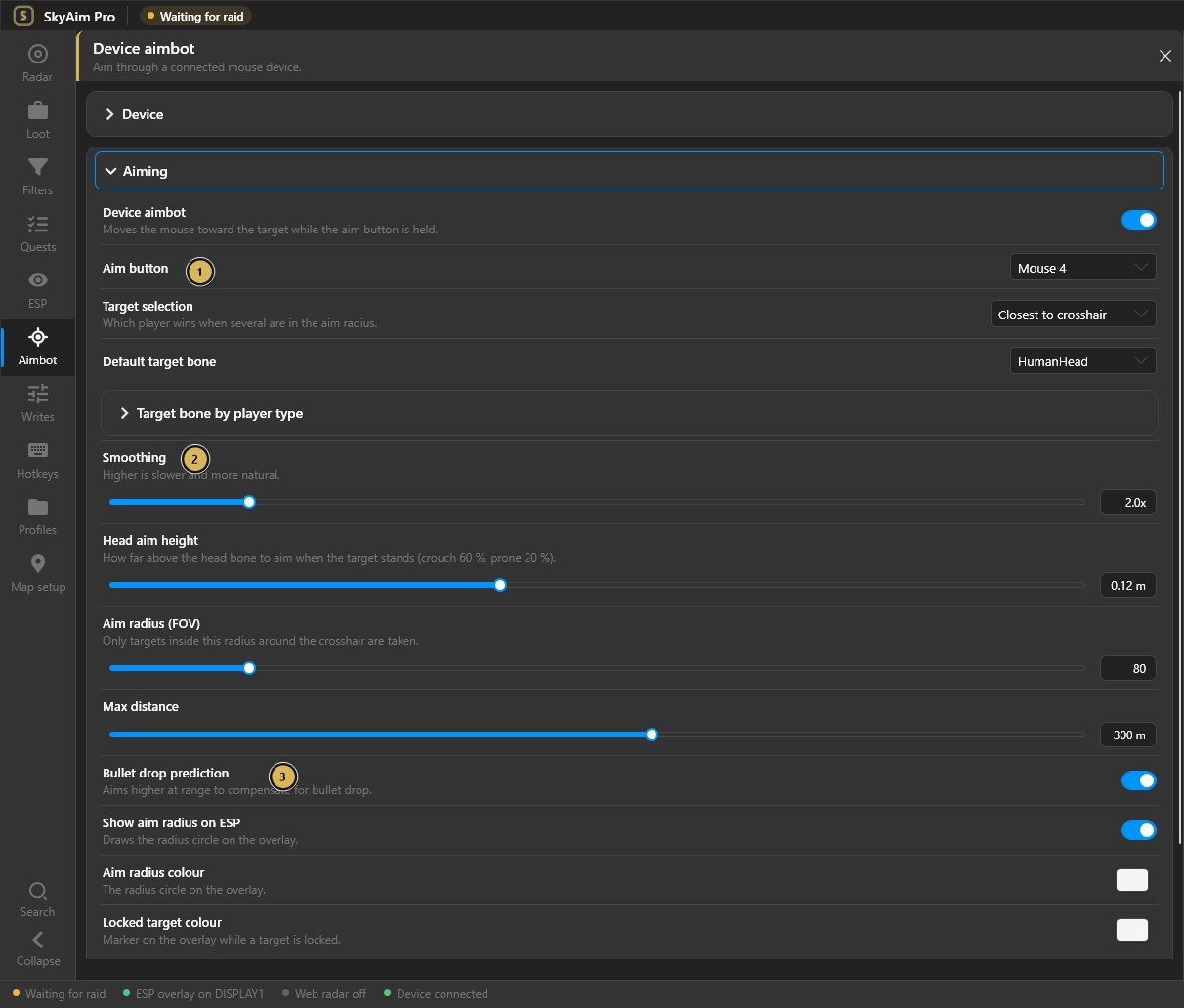
- Aim button on the mouse
- Smoothing for natural movement
- Bullet drop prediction at range
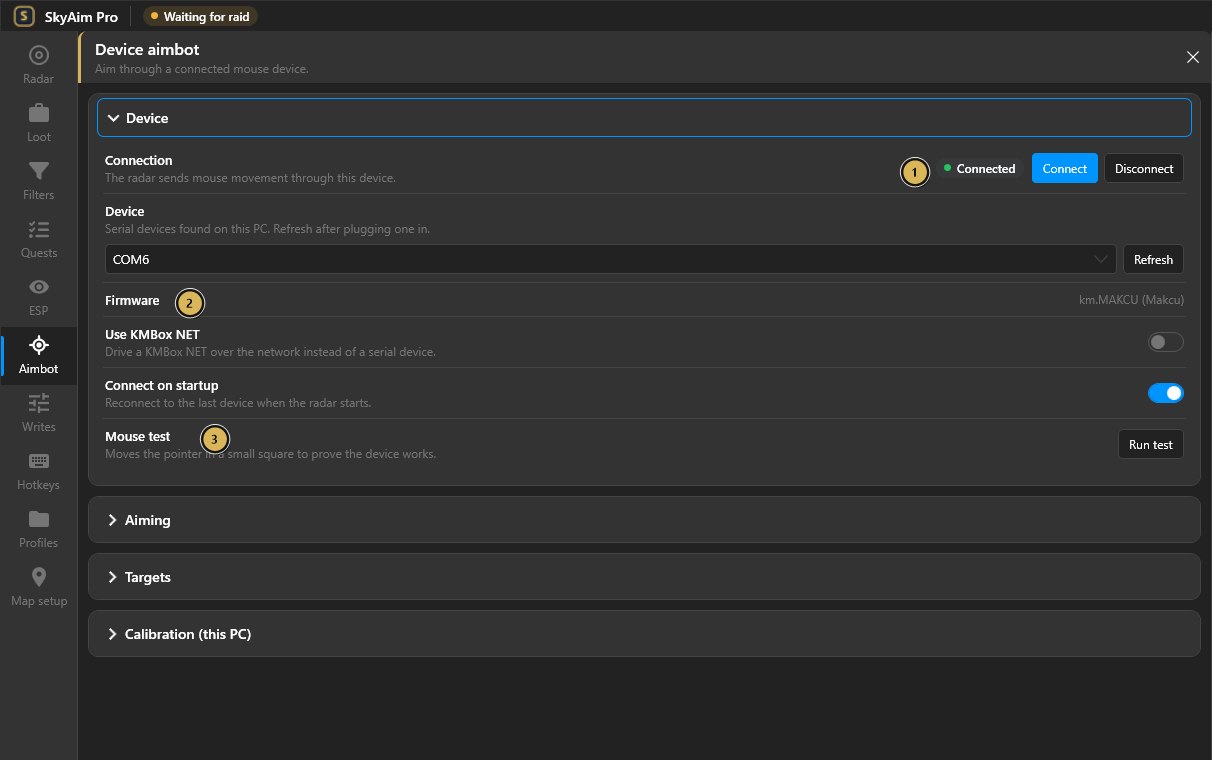
- Device connected
- Firmware km.MAKCU verified
- Mouse test to check the cable to the game PC
The aimbot does nothing until a device is connected and verified. Set up the device with MAKCU setup, KMBOX Net or KMBOX Bpro and check Mouse test before touching the aim settings.
Device#
- Device
- The serial port of your MAKCU. SkyAim Pro detects the MAKCU adapter automatically (CH343, signature
km.MAKCU); if several adapters exist, choose the port by hand. - Connect on startup
- Opens the device as soon as SkyAim Pro starts.
- Use KMBox NET / KMBox NET address
- Switches to a KMBox NET over the network. Enter the IP, port and MAC shown on the box's screen.
- Firmware
- The signature the device answered with. Empty means the device was not verified.
- Mouse test
- Moves the cursor in a small square. If the cursor on the game PC does not move, nothing else will work.
Aiming#
- Aim button
- The mouse button that engages the aimbot while held. MAKCU reports its own buttons, so the button is detected on the device even though the mouse is on the game PC. You can also bind keyboard hotkeys (Toggle aimbot, Engage aimbot).
- Aim radius (FOV)
- Only targets inside this circle around the crosshair are considered. Show aim radius on ESP draws the circle on the overlay in the Aim radius colour.
- Max distance
- Targets further than this (metres) are ignored.
- Smoothing
- Higher values move the mouse in more, smaller steps. 1 snaps; 3 to 6 looks like a fast human flick; above 8 is slow enough to lose moving targets.
- Use the game's sensitivity settings
- Reads hip and ADS sensitivity from the game so the correction is exact. Turn it off to enter Hip sensitivity and ADS sensitivity yourself.
- Bullet drop prediction
- Leads the target and compensates drop using the loaded ammo's ballistics. Needs a loaded firearm in hand.
- Head aim height
- Fine-tunes the head aim point vertically. Default 0.12. Raise it if shots clip the top of the helmet, lower it if they hit the neck.
- Calibration (this PC)
- A one-time measurement of how far the mouse moves per unit on this PC. Without it the default gains are used, which may over- or under-shoot. Run it once per PC and after changing DPI.
- Display check
- Confirms the overlay and the game share the same screen geometry, which the angle-based aim relies on.
Targets#
Tick the player types the aimbot may lock on to: PMC players, Player scavs, AI scavs, Bosses, Raiders. Teammates are never targeted. Untick AI scavs if you only want the bot to engage real threats.
- Target selection
- Closest to crosshair picks the target nearest the centre of the screen; Closest player picks the nearest in metres. Once locked, the bot keeps the target a little outside the FOV so a fast peek does not drop the lock.
- Default target bone
- Head, Neck, Chest, Lower torso or Pelvis. If the chosen bone is out of view the chest is used as a fallback.
- Target bone by player type
- Overrides the default per type. Example: Chest for PMC players, Head for AI scavs. Use default keeps the global choice.
Aim radius 60 to 90, max distance 200 to 300, smoothing 3 to 5, Head for scavs, Chest for PMCs, prediction on. Then run Calibration and adjust Head aim height from there.
Status while aiming#
The radar status line and the overlay Aimbot target widget show the locked player, the bone in use and the distance. The widget turns to the Locked target colour (set on this page) while a lock is held. If it never changes colour, read Aimbot not locking.
Check the FAQ and the launcher message list first. If that does not solve it, send the publisher your newest file from output\Logs (or launcher-update.log for launcher problems).